Twitter

I updated my Twitter name today. Rather than being @nicap, I am now @YousephTanha.

I was a little worried about making this change. I thought I might have to contact the people on my friends list and let them know they needed to update their contact information about me. That has turned out not to be the case. When I updated my name from @nicap to @YousephTanha, it seems twitter updated everything associated with @nicap on the backend. The result is that no one had to do a thing. The contact information just updated across the board for everyone. Pretty cool functionality. Thanks Twitter!

I also added a twitter widget to my sidebar on the right.

Mac Mini Media Center Project (Part 3)

After I filled up my Mac Mini’s hard drive with my encoded videos from my DVD collection there was not much more I could do till I ordered the Qnap NAS. This would be the most expensive peace of my Media Center setup.

Qnap NAS

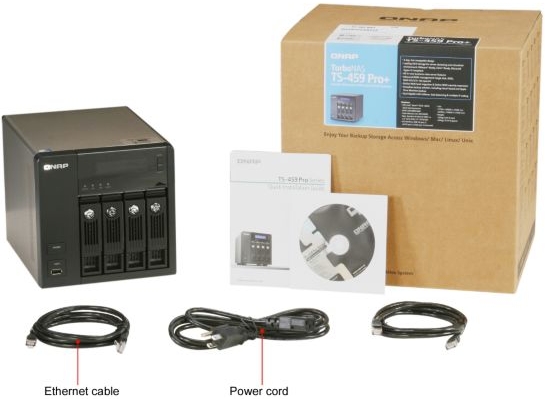
After reading about NAS solutions online and talking about it with friends who have experience with such devices I proceded to order a four bay Qnap NAS TS 459 Pro+ Turbo NAS with five, 2 Terabyte Western Digital Caviar Black hard drives. The spare hard drive is incase one of the other harddrives fail.

I ordered both the Qnap NAS and the Western Digital hardrives from Newegg. I have had good experiences ordering products from them in the past and this was no different.

Both the hardrives and the Qnap arrived well packaged on a Friday. It was Martin Luther King weekend and I had all three days to work on this project.

The first thing I did was head to a local Electronics store and picked up this APC Battery Backup, and this Apple Airport Wireless Extreme Base Station. I spent a lot of money on this equipment and I don’t trust it to Juneau’s dirty electricity.

From unboxing everything to final setup only took me an hour. Which was great! I think it speaks volumes on how easy setting up a Qnap NAS. It also left me with a three day weekend to enjoy.

Following the easy to read directions for the Qnap, I took out four of my five harddrives totaling 8 Terabytes worth of storage and inserted them into the Qnap Unit.  I plugged in my APC Battery backup and plugged the Qnap and the Apple Airport into it, then plugged an ethernet cable from the Qnap to the Airport and turned it all on. By default the Qnap wanted to set up it’s self as a RAID 5. The unit supports other RAID options, but I chose to go with it’s suggested default of RAID 5. It took the Qnap maybe twenty minutes to partiton the harddrives and set its self up as a Raid 5 server.

RAID 5 IN A NUT SHELL

RAID 5 means is that event hough I loaded up 8 Terabytes of harddrive storage, I would have 6 Terabytes of usable storage. If I have understood what I have read the data I store on the Qnap is more or less available on two of the harddrives at any one time. The point of this is that one harddrive of the four can fail and I wont necessarily lose any data. Should that happen I would just follow the easy to read directions it came with regarding how to replace the failed hard drive. The Qnap system will rebuild it’s self and all will be right in the world again.

YOU STILL NEED TO DO BACKUPS

Let me stress to anyone who does a project like this or owns a computer in general, please back up your data. I still do backups. Things I keep on the Qnap that I can’t afford to lose, things like photos, home videos, and documents I still back up off of the Qnap on to another hard drive monthly.

With the Qnap up and running I first went into the settings and enabled Time Machine backups. Again, this was a simple process that only took a couple of minutes. Before long every computer in my house (that would be 5) where backing up wirelessly to the Qnap Nas.

Next I went into the settings enabled APC Protection. Should my house lose power for longer then to minutes the Qnap Nas which would be running off the APC battery at this point would shut down after 2 minutes if the power is not restored.

Finally I setup a shares and users accounts on the Qnap NAS. This allows me to store the encoded movies I had on the Mac Mini on the Qnap. After transferring over the movies I was able to start encoding more of them again.

FINAL THOUGHTS ON THE QNAP NAS

At the time of this post I have had the Qnap Nas for a little over three weeks now with no real complaints. I was able to set the whole thing up in under an hour and it’s been very easy to use. I do recommend the Qnap, but also know I have no bases for compression. This is the first NAS I have ever setup.

The Qnap is capable of doing much more then it currently is. I really want to explore the tons of options it has. I do need to compete this first task before I start playing with it more. I have to finish encoding my DVDs first, then I will go back and see what other Qnap options I might like to play with.

I have discovered that the Qnap and iPhoto 11 do not get along well togetherl. This is because of the format of the hardrives in the Qnap. iPhoto 11 requires HFS+ formatted hardrives to run correctly. Qnap does not support that format (yet). My workaround for this has been to use a separate external hardrive for iPhoto 11 which I also backup. I could keep all the photos and iPhoto 11 on my main computer’s harddrive, but I have so many photos  that the space it requires is very large for me. At this point it just makes sense to keep it on a separate external drive.

In my next post I am going to be talking a little bit about file and media organization.

To Be Continued…

Mac Mini Media Center Project (Part 2)

Apple Keyboard & Trackpad

Encouraged by the results of my previous post I went forth and ordered a Mac Mini (2.4GHz Intel Core 2 Duo, 4GB 1066MHz DDR3 SDRAM, 320GB Harddrive) along with the Apple remote, wireless keyboard and wireless Magic Trackpad to see how play back looks on my T.V. I figured having a computer hooked up to my TV there would be times when I might want to use it like a computer. Surfing the web from the couch or having a place where guests can check their e-mail just seemed like the smart thing to do.

The Mac Mini I ordered was a custom build. Chances are this will be overkill for 90% of you. I would say from my experience of doing a project like this you can get away with the base model of the Mac Mini and be just fine.

When the mac mini came I found setup to be quite easy. I Took the computer out of it’s box and placed it on the stand under my T.V. Hooked up the power cord, HDMI cable and pressed the power button on the back of the computer. On it’s first boot-up I was asked if I had a wireless keyboard and mouse/trackpad and to turn them on. A few more clicks through the initial setup and I was good to go. My Mac mini was running fine and everything looked great on my TV. I did have to go into the system preferences and make minor adjustments to the display settings for my TV, but that was it.

First thing was first. I had some software to download.

COPY PROTECTION

After downloading and installing the VLC and Handbrake programs I put in the first DVD I wanted to encode. Ironman 2. Like the test movies I did earlier in the month I put the Ironman 2 DVD in my mac mini, launched Handbrake and pointed it to the DVD so it could do it’s initial scan of the movie data.

The first time I did this with another DVD on my laptop the process just took about a minute. On my Mac Mini with Ironman 2 it took almost 2 hours to complete. Something was not right here. When the scan was completed I reviewed the handbrake encoding settings. It was in this process I noticed something was wrong. No audio tracks were listed. If I told handbrake to encode this it would encode the movie without the audio. I went to Google for help and started searching around to see if other people had this problem. Sure enough they did. Ironman 2 has new/different copy protection on it preventing me from encoding the movie I owned.

Remember that what I am doing is perfectly legal. This is my media I bought and paid for. I am just putting it all on a drive so I can access it more easily.

Thanks to some forum posts over at the Handbrake site I was able to use a program called ‘Mac The Knife‘ and copy the DVD to my hard drive and then encode it with handbrake. (At the time of this post I have been considering switching from ‘Mac The Knife’ to ‘Ripit‘ A $25.00 peace of software that appears capable of ripping more copy protected DVDs then the free ‘Mac The Knife’.) The end result was an encoding of the movie for my mac mini. Since then I have come across a few other disk with copy protection like this. Mostly TV Shows.

ENCODING SETTINGS

Screenshot of Handbrake

After watching the Ironman 2 movie and comparing it to the DVD I kept seeing what is call artifacts on the screen. The default Handbrake compression I was using was not the cleanest and it was driving me a little crazy. I headed on over to the Handbrake forums and did some reading. It turns out you can make slight adjustments to the settings and see a huge difference in video quality. It is now to the point that I can’t tell the difference between the DVD and the encoded video. Which is what I was hopping for.

When you launch Handbrake you are presented with a pop out pane on the right side that has a number of preset suggested compressions. If you click on the ‘Apple TV’ preset and then go back over to the main window you are only going to have to adjust two settings. The first on is under the “Output settings”. You want to uncheck the box called “Large File Size”. Next, lower on the same window you’ll see a slider bar. You want to drag that slider to the right till the RF reads 19. That’s it.

If you don’t want to have to go back and adjust those settings each time you put in a DVD to encode, you can click on the “Presets” drop down menu on the finder bar and save this setting as a new preset. As you can see below it is near impossible to see the difference between the DVD and the encoded video.

The Movie: Ironman 2. Quality comparison image. Click to Enlarge.

The Movie: Dead or Alive. Quality comparison image. Click to Enlarge.

As I have been writing this post I have been encoding a lot of my DVDs. The encoding settings I have given you above will work for most of your DVDs as well, but not all of them. This is because most DVD are made using the NTSC standard. I do own DVDs that are made using the PAL (Phase Alternating Line) standard. When I try to encode a DVD that was made with the PAL standard the result is a movie that looks like it is shifting alternating lines. When you see it you will know what I mean.

To correct this problem and remove the “alternating lines” look of my encoded movies I once again visited the handbrake forums. The first steps are the same as above. Launch Handbrake and in the pop out pain on the right side that has a number of preset suggested compressions. If you click on the ‘Apple TV’ preset and then go back over to the main window you are only going to have to adjust two settings. The first on is under the “Output settings”. You want to uncheck the box called “Large File Size”. Next, lower on the same window you’ll see a slider bar. You want to drag that slider to the right till the RF reads 19. We are almost done. Click on the “Picture Settings” icon at the top of the program window. Switch over to “Filters” tab and click on the “Decomb” drop down menu and select “Default”. Every PAL movie and TV show I have encoded with this setting has looked great to me. Don’t forget to save this as a preset.

HOW TO ENCODE TV SHOW DVDs

Handbreak is a great program, but you still need to help it along it’s way. This is very evident went you are encoding TV Shows. When you have Handbreak scan a TV DVD like Firefly, handbrake is going to pick one file it thinks is the video file you want to encode. Normally it’s the file with the longest video on it. However a TV show DVD like Firefly can have up to 4 episodes on one DVD. By default Handbrake is going to try and find the one video file that is the longest and only encode that one file. This is not what we want. So how do we fix this?

This is where I use VLC a lot. Start off by Scanning the DVD with Handbrake. Once that task is completed launch VLC and start playing the first episode on the DVD. Once the episode is playing click on the “Playback” drop down menu on the Finder and highlight “Title”. This will show you which Title (or file) is playing. So you should be able to see that episode one of Firefly is using Title 2. You can now pause the show and go back to Handbrake and on the main window flick on the “title” drop down and select “2″. From main window chose what you want to name the encoded episode (something like Firefly 1) and click the icon at the top of the window named “Add to Queue”. Go back and repeat these steps for each episode on the DVD. Once done you can click the “Start” button and Handbrake will encode each episode on the DVD.

WHATS NEXT

With my new encoding settings setup I went forth and started to encode my DVD collection. In less than a month I had filled up the harddrive of my Mac Mini and was forced to stop encoding my movies. I had to order the Qnap NAS server before I could continue any more with this project.

In my up coming post “Mac Mini Media Center Project (part 3). I will be discussing the specs of the Qnap NAS server I ordered and how it’s been working out for me so far.

To Be Continued…

Mac Mini Media Center Project (Part 1)

My TV and DVDs Before Starting the Mac Mini Media Center Project

I own a lot of DVDs. We are talking nearly 500 at last count. It’s sick, I know. Sifting through them all to find the one movie I want to watch has become such a chore that I would rather just fire up my Playstation 3 (PS3) to access my Netflix account and stream something then dig for a DVD of a movie I actually want to watch. So, I have decided that the solution to my conundrum is to setup a Media Center PC. More specifically a Mac Mini media center attached to my T.V. with an interface that even my mother could use.

WHAT DO I WANT THE END RESULT TO BE?

  • An uncluttered home theater.
  • A small computer hooked up to my T.V.
  • Access to all my media and the internet.
  • The ability to back up all my computers
  • A new storage solution for my physical media.
  • An interface so easy my mother can use it.

RESEARCH

Like any project you should do research into it first. Which is what I did. With google as my guide I sought out other peoples experience with setting up a Mac Media Center. Here are a list of some sites I found that where helpful to me.

I also spoke with friends of mine who had done similar projects. It always helps to read, write, and talk to people about ideas you have. It helps flush out the details of what is trying to be accomplish.

All of these sites listed above where very helpful to me, but none where setup quite the way I wanted. Most of these talked about just using the Mac Mini or the Mac Mini with an external hard drive attached and honestly that probably is the solution for 90% of you out there. But I was looking for a setup with a little bit more free hard drive space for me to use. Particularly because I have several computers in my house and I want them all to be able to back up wirelessly to on location. I also enjoy editing home movies and having a place to store the massive video files I work with is important to me. I think I have come up with a solution that works as you will see.

LOGISTICS

One pressing question I had from the get go is; How much hard drive space am I going to need? 500 DVDs is a lot of movies and T.V. shows. So how can I get an idea of how much hard drive space I am going to need?

Most people building a Medica Center PC are doing so to encode their DVDs onto a hard drive. If you where just to copy the DVD over to your hard drive your looking at something that takes up anywhere from 2 to 8 gigs of hard drive space. When you encode a DVD onto your hard drive you have the option of removing all the special features, menus, audio commentary, subtitles, and non-english audio tracks leaving you with just the movie. What this means is no more waiting through previews, FBI Warnings or other types of bullshit that is preventing you from watching the movie you want to watch. You just get the movie and your left with a much more manageable file size.

Handbrake Application Icon

One free peace of software I read about and that everyone pretty much agreed is the best DVD encoding tool is called HandBrake. Before dropping a single penny on my media center I could preform tests to make sure the video is going to look great and be a manageable file size. I downloaded Handbrake and picked a DVD off my shelf at random and encoded it. Using only HandBrake’s presets I found that encoding under the “High Profile” preset rendered out a 1.5 GB file. Playback of the DVD and the encoded movie showed hardly any noticeable difference. It certainly looked a lot better then any Netflix movie I had streamed in the past. If I take the 1.5 GB as an average and multiply that by 500 (the number of DVDs I own) The end result is 750 GB. A very manageable figure.

It’s a very manageable figure till you miss calculate TV shows like I did.

At the time of this post I have encoded several movies and TV shows using Handbrake. Something I over looked is that the average movie is anywhere from 1 and a half to 2 hours, give or take per DVD. Now lets take E.R. on DVD. The DVD for E.R. holds 4 episodes at about 1 hour each. You have 24 episodes a season and that is roughly 24 hours of video which ends up being a little under 1 gig an episode. It adds up! It was something I over looked when I did my initial estimation of how much hard drive space I would need. Don’t let that catch you off guard like it did me. Do the math right so you know how much hard drive space you are going to need to hold your DVD collection.

To Be Continued…

Home Theater PC Plans

I have plans to set up a HOME THEATER PC for my place and my head has been spinning about the right way to tackle this project. I have been searching blogs and consulting with friends on the best options and setups I could have.

My drive to take on such a project was a result of my mothers last visit to my place. In the evenings she liked to watch movies. That is it’s self is not something hard to do. However, when you have a collection of over 400+ DVDs it can be not only daunting, but intimidating to find a movie and watch it. So I wanted to get all my movies digitized in a way that someone could turn on my TV, scroll through my collection of movies, pick one and play it.

For this I have chosen to go the Apple Mac Mini route. I plan to pick up a Mac Mini and hook it up to my tv and start encoding all my movies.

For someone with 200 movies or so this would be a perfect solution. However I have 400 movies. So I started to look into additional storage options. I believe I am going to go with a NAS storage server setup with enough extra space so I can continue to grow my movie collection, but also allow all the computers in the house to be backed up to the NAS.

I am still working out the details of everything, but when I am done I am planing on having quite the blog post about my setup.

My Dad, Netflix and Foreign Films

Farsi

Farsi

My dad came up to Juneau to visit recently. He came at a good time because we have been having some amazing weather up here. Mid to high 70s with very little overcast or rain. We are  having a good spring and summer this year that’s for sure.

While he was here we did all the normal sight seeing stuff like visiting the Mendenhall Glacier, Eating at the Twisted Fish, Checking out the Shrine of St. Therese, ect.

One of the unexpected things we got to do was to watch some Persian movies in Farsi. I discovered that Netflix has a great foreign selection. I was able to do a Google search for some movies in Farsi that won some awards and queued them up to stream to my PlayStation 3 so we were all able to watch the movies on my television.

All the Farsi movies I found on Netflix where subtitled in English so we where all able to follow along with the movies.

How To Organize Your D&D Miniatures

Dungeons & Dragons Logo

Table Of D&D Minis

My Table of D&D Minis

I had a need to organize my D&D minis. I was finding that just to  locate a particular one for D&D night had become a chore. I was always sifting through a box or bag of them just to find one in particular. Not to mention storing minis in a box or bag is not the best thing for them.  Parts get bent or broken if your not careful. So I have come up with a way to organize your Minis. For the most part your only going to need 3 things.

  1. Sterilite Draws (You can find them most retail stores)
  2. A Label Maker
  3. Apple’s iPhoto (mac only) or Google’s Picasa (Mac or Windows) Software

STEP 1: LABEL THE DRAWERS

The first thing I did was to label my drawers. I printed labels from my label maker saying “Drawer 1″, “Drawer 2″, “Drawer 3″, and so on and stuck them to the front of each drawer. The drawers I am using I picked up from Wal-Mart and they are called “Sterilite“. Just little plastic drawer storage units big enough to hold my minis.

STEP 2: LOOK UP EACH MINI ONLINE

I layed out all my D&D minis on the kitchen table. I then proceeded to look up each one online. I would use a site like Alter Reality Games to search for each mini individually. When the search would come back I would be presented with an image of the mini and some text including the mini’s name and the set it came from.

iPhoto D&D mini collection

iPhoto D&D Mini Collection

STEP 3: PUT THE INFO INTO IPHOTO

Save the mini’s picture to iPhoto (or Picasa).

SIDE NOTE: You can create a brand new iPhoto library so as not to add a bunch of pictures of minis to your personal photos by holding down the option key and launching iPhoto. The program will ask you if you want to create a new library or open an existing one. I created a new library and saved it in my computer’s D&D directory.

Next I created an album for each drawer. So I have one album named “Drawer 1″, “Drawer 2″ and so on. As I copied pictures of minis into iPhoto’s album named “drawer 1″  I would select the image and paste in text related to the mini that I found from the website.

In both the iPhoto and Picasa programs you have the option to enter text information about the image. Here is where I enter the mini’s name and the set it came from. (See the image on the right)

D&D mini drawer

D&D Mini Drawer

STEP 4: PLACE THE MINI IN THE DRAWER

After all the all the information about the mini was entered into iPhoto I then put the mini in the corresponding drawer. Repeat steps 2 through 4 till your whole mini collection has been cataloged in iPhoto.

So now If your looking for a green dragon all you have to is type in “Green Dragon” In your search field and iphoto or Picasa and it will tell you what draw the mini is located in.

SOME HISTORY

I have almost been playing Dungeons & Dragons for a year now. For less time then that I have started collected D&D minis. My collection has grown quickly and I needed a way to store then. Rather then reinvent the wheel I turned to Google for help. I figured I was not the only one with this question and someone else must have come up with a solution that I could use.

Well sure enough I found a hand full for websites selling products for miniature storage. But I was not finding a lot of end user experience. Since I was not satisfied with what I found on a few Google searches I turned to Twitter and asked the following question of some DM’s I Follow.

@theodudek, @SlyFlourish, @newbiedm I need a way to store my growing #DnD miniatures collection. Do you guys have any suggestions?

NewbieDM sent me the following response:

@Nicap (thats me)  I buy these plastic drawer storagethings at Wal-Mart. keep them there, sorted by undead, PC’s, creatures, etc…

Right off the bat that sounded like a good idea to me. I went to the store and picked up a couple of these plastic drawer storage things and tossed my minis in them and life was good. Life was good till my collection of minis grew to the point that finding ones needed for a particular game was becoming a chore.

After some time thinking about the problem I am up with the solution above that has been working out for me very well. I hope you all find it useful.